¶ Download and Install Hytale Server
You must own a copy of Hytale in order to setup and use an EVLBOX Hytale server. Visit the Hytale Store to purchase a copy.
¶ Authenticate the Installer and Download Server
After ordering your Hytale server, sign into the EVLBOX Nitro Panel
- Login to nitro.evlbox.com
- Click on your server and go to the Terminal window.
- Start your server by clicking the Green Triangle "Start" button.
- The console displays a message "Please visit the following URL to authenticate" Click on the first link.
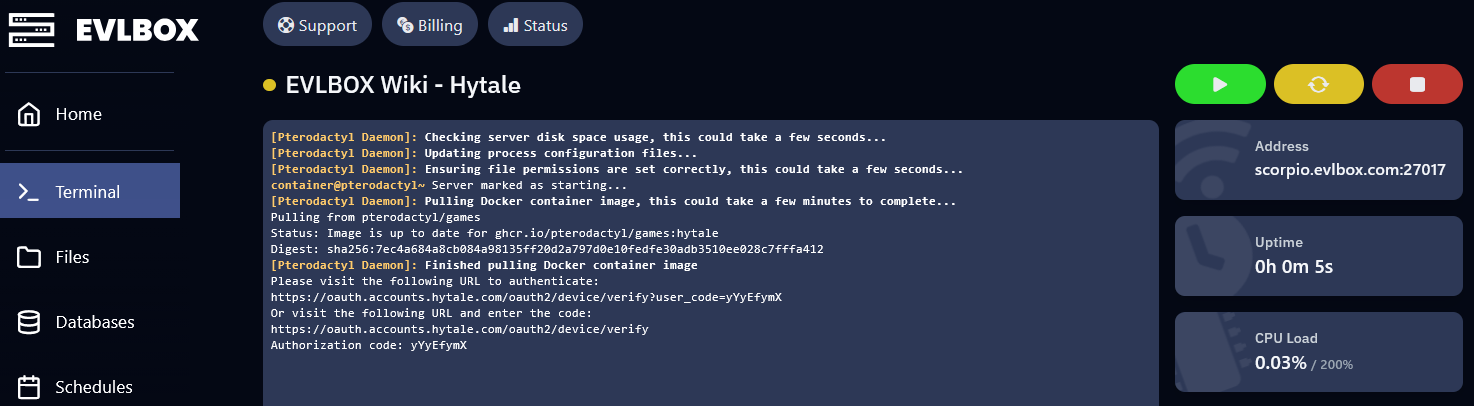
- The link takes you to Hytale's website. Login to the account that owns a copy of Hytale, then click on Approve.
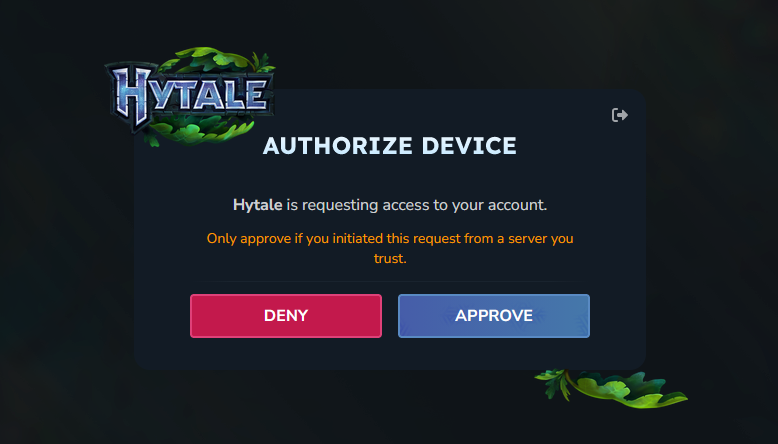
- Once approved, the download starts and takes about 1-2 minutes. When complete you should see a green "Hytale Server Booted!" You now must Authorize the server (see below steps)

¶ Authenticate your Hytale Server
This binds your Hytale account to your game server as required by Hytale's server documentation.
- Once your server has booted up type in
/auth login deviceand press enter
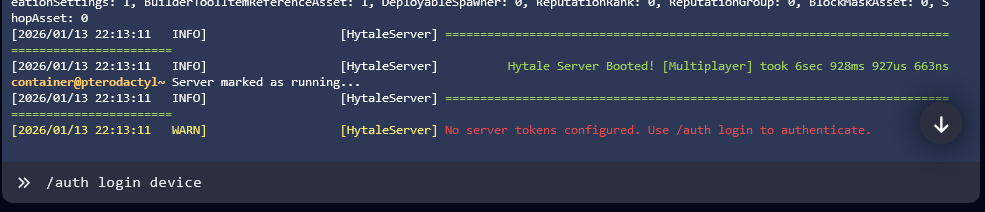
- Click the second link which contains the device code. Click Approve on the Hytale webpage.
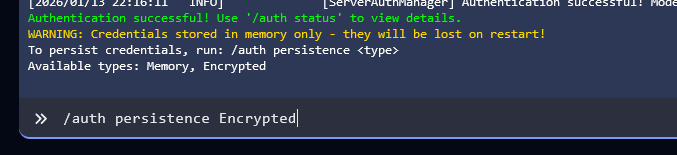
You should then see a message like this:
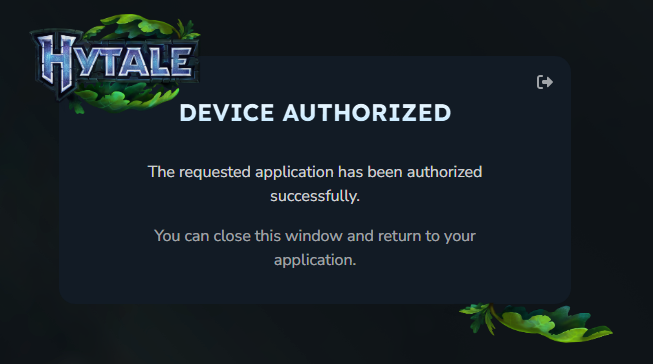
This step is critically important! If you skip this step you will have to authenticate on every server restart!!!
- In the console you must now type
/auth persistence Encryptedthis will save your authentication to your server
¶ Connect to your server
- In the Nitro panel, click into your servers' terminal screen.
- On the right side you'll see
Addressclick on it to copy
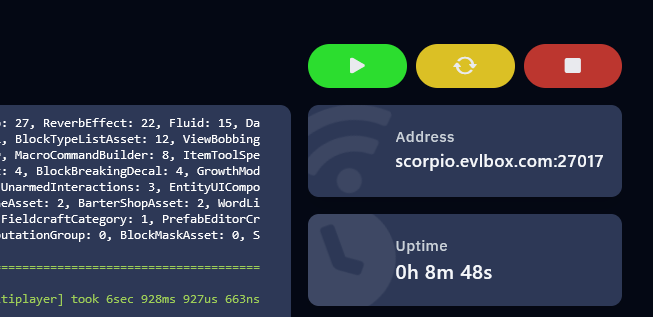
In the example the address scorpio.evlbox.com:27017 is what you need to copy
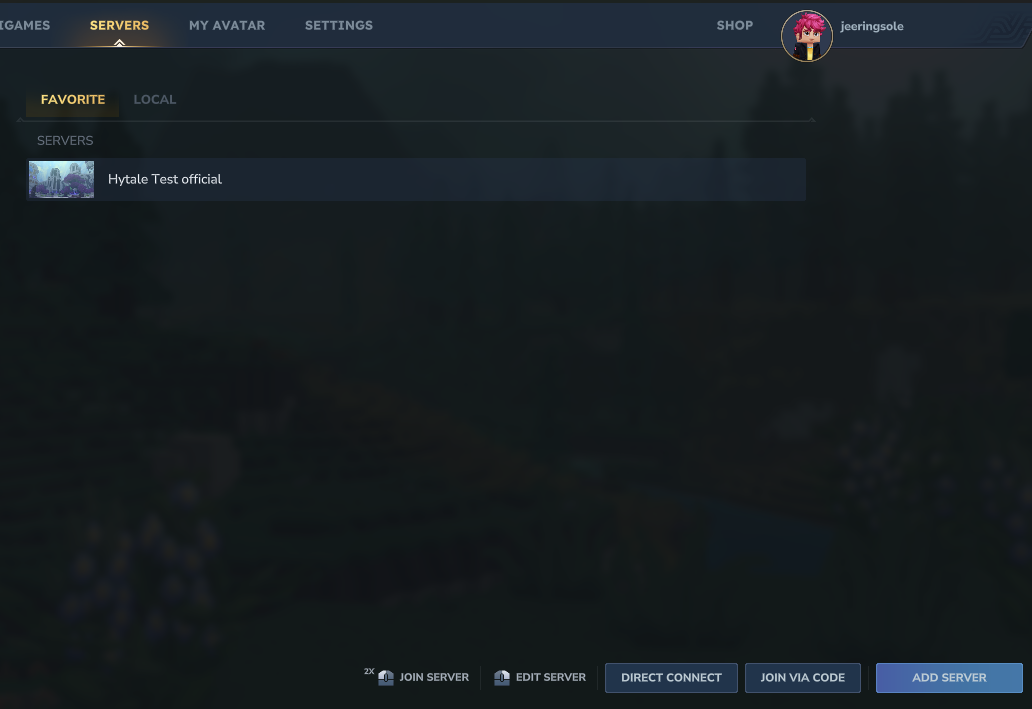
- Launch Hytale and click on
Servers

- Click
Add Serverin the bottom right corner.
- Paste the connection address from Nitro Panel. Set a label for your server.
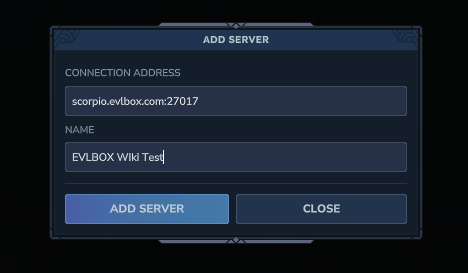
- To join your newly added server double click it from the list.
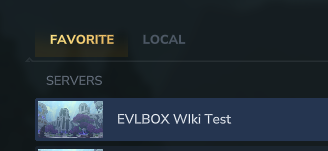
You should now be connected to your server! If you need further assistance, please reach out to our support team on Discord